
Build pages that flow.
PageFlow is a page builder you add to your own site or application in two lines. People compose their pages with blocks and ready-made sections; you get clean, responsive Bootstrap 5 HTML that you save where you want.
This guide explains how to install PageFlow, how to use it, and how to adapt it. The first part is for everyone; the Developers part is for whoever installs PageFlow in a site.
Highlights
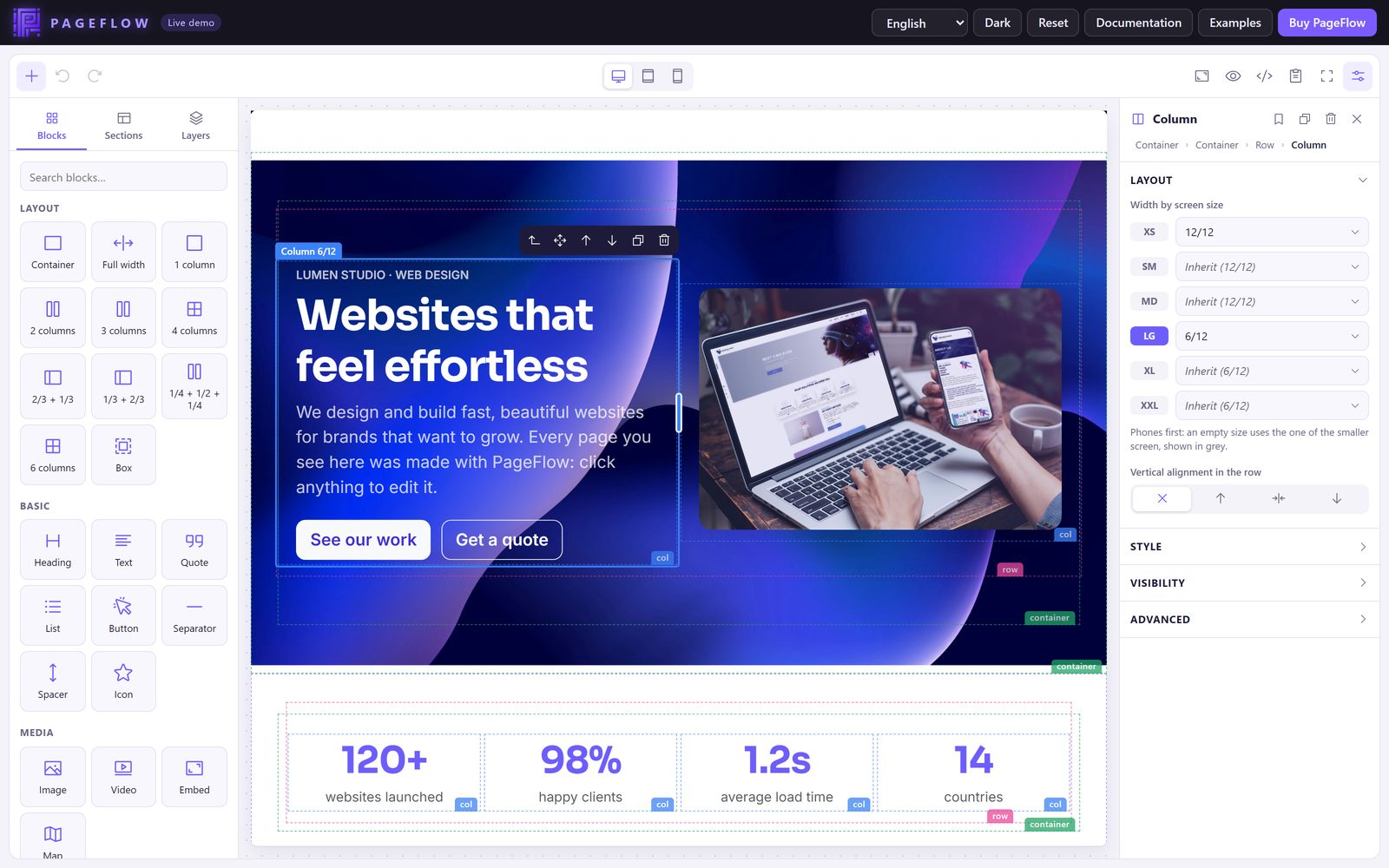
The page is edited with the styles of your own site, in a frame where screen sizes work: desktop, tablet and phone previews show the real layout.
Containers, rows, columns and utility classes: markup any developer can read, keep and style.
Headings, texts, buttons, images, videos, maps, icons, cards, accordions, tables… and ready-made sections: hero, features, pricing, FAQ, team, contact.
Drag the edge of a column to resize it; set a width for each screen size; hide a block on some screens.
Headings, lists, quotes, links, alignment and tables, with a clean paste from Word or the web. Plug another editor if you prefer.
Scripts and dangerous links are removed from everything that enters the page; the included PHP upload handler accepts pictures only.
Undo and redo, copy and paste between pages, saved blocks, layers, drafts kept in the browser, keyboard shortcuts.
One script of plain JavaScript (about 100 KB gzipped, six languages included). The jQuery syntax of version 1 still works.
English, French, Spanish, German, Italian and Portuguese, and your own.
Live demo
Try PageFlow at pageflow.pandao.eu: change the language and the theme of the interface, drop blocks, edit the texts, resize the columns, upload a picture. Your changes stay in your browser; Reset brings the demo page back. Pictures uploaded on the demo are deleted every night.
The photos of the demo, which the screenshots of this guide show, are for preview only and are not included in the package.
Requirements
| For | You need |
|---|---|
| The editor | A recent browser: Chrome, Edge, Opera or Brave 100+, Firefox 100+, Safari 15+. No server is needed to run PageFlow itself. |
| The pages it writes | The CSS of Bootstrap 5 on your site (the CSS only: PageFlow's blocks need no Bootstrap JavaScript). |
| Uploading pictures | An upload address on your server. The included PHP handler needs PHP 7.4 or later with GD (and, optionally, the exif and intl extensions). You can use any other language: see Pictures and uploads. |
| Rebuilding from the sources (optional) | Node.js 18+ and npm install. |
Package contents
pageflow-2.0.0/
├── dist/
│   ├── pageflow.min.js       the editor, for a <script> tag (global PageFlow)
│   ├── pageflow.js           the same, not minified
│   ├── pageflow.esm.min.js   ES module: import PageFlow from '…/pageflow.esm.min.js'
│   ├── pageflow.esm.js
│   └── pageflow.css          only for pages that forbid injected styles (injectStyles: false)
├── examples/                 7 examples: open examples/index.html
├── server/php/               secure upload handler and security helpers
├── src/                      the sources (ES modules), to read or to rebuild
├── tools/                    build scripts (npm run build)
├── documentation/            this guide
├── package.json
├── README.txt
└── LICENSE.txt
Only dist/pageflow.min.js is needed in production; add server/php/ if you use the PHP upload handler.
Quick start
- Copy the
pageflowfolder (at leastdist/) to your site. - Add an element for the editor and the script:
<div id="editor"></div> <script src="/pageflow/dist/pageflow.min.js"></script> <script> const editor = PageFlow.create('#editor'); </script> - Get the page with
editor.getHTML()and save it where you want (see In a form).
The canvas loads Bootstrap 5 from jsDelivr by default. Load the stylesheets of your site instead, so that the page looks exactly like it will online:
PageFlow.create('#editor', {
    canvasStyles: ['/css/bootstrap.min.css', '/css/theme.css'],
    html: savedHtml,          // the page to edit (or put it inside #editor)
    locale: 'en',             // en, fr, es, de, it, pt
});
As an ES module:
import PageFlow from '/pageflow/dist/pageflow.esm.min.js';
const editor = PageFlow.create('#editor', { … });
Open examples/index.html: each example is one page, small enough to read in a minute.
In a form
Give PageFlow the field that holds the page: it reads it at start, writes it after every change, and once more when the form is sent (the text being typed included).
<form method="post" action="/save-page">
    <div id="editor"></div>
    <textarea id="content" name="content" hidden><?= htmlspecialchars($page->content) ?></textarea>
    <button>Save</button>
</form>

<script>
    PageFlow.create('#editor', { input: '#content', mode: 'compact', height: 700 });
</script>
Without a form, save with your own button: the actions option adds buttons to the top bar.
PageFlow.create('#editor', {
    html: savedHtml,
    actions: [{
        label: 'Save', icon: 'floppy-disk', primary: true,
        onClick: async editor => {
            await fetch('/pages/42', { method: 'PUT', body: editor.getHTML() });
            editor.notify('Saved', 'success');
        },
    }],
});
The autosave option keeps a draft in the browser: after a crash or a closed tab, PageFlow offers to restore the changes. The draft is removed when the form is sent, or with editor.clearDraft().
Pictures and uploads
To send pictures from the computer, PageFlow needs an upload address. Without one, the image fields only take the address of a picture: PageFlow never stores pictures in the page as base64 unless you ask for it (inlineImages: true, for pages without any server), because they would fill your database with megabytes of text.
The included PHP handler
<?php require 'pageflow/server/php/pageflow-security.php'; ?>
<script>
    PageFlow.create('#editor', {
        uploadUrl: '/pageflow/server/php/pageflow-upload.php',
        csrfToken: '<?= pageflow_csrf_token() ?>',
    });
</script>
It accepts JPEG, PNG, GIF and WebP pictures only, checked from their content; it writes each picture again (as WebP when possible, resized to 2000 px at most), under a random name, in uploads/ at the root of the package, a folder where scripts can never run. Requests need the CSRF token of the session and must come from your site.
Before going online, open server/php/pageflow-security.php and make pageflow_can_upload() check that the visitor is allowed to edit pages (for example, that an administrator is logged in). The folder and the limits are set at the top of pageflow-upload.php.
Your own upload address
PageFlow posts the file (multipart/form-data, field upload, plus csrf_token and the X-CSRF-Token header when csrfToken is set, plus uploadData) and expects JSON with the address of the file:
{ "url": "/media/2026/10/lake.webp" }             // success
{ "error": { "message": "This file is too large." } }   // error, shown to the user (HTTP 4xx/5xx)
An upload function, or your media library
PageFlow.create('#editor', {
    // any service: S3, Cloudinary, your API… return the address, or {url, alt}
    upload: async (file, { type }) => {
        const data = new FormData();
        data.append('file', file);
        const response = await fetch('/api/media', { method: 'POST', body: data });
        return (await response.json()).url;
    },
    // or the media library of your application: open() resolves with {url, alt} or null
    mediaLibrary: { open: ({ type }) => myLibrary.choose(type) },
});
Pictures can be uploaded from the image field, dropped from the desktop onto the page (on a picture, they replace it) or pasted (a screenshot). Deleting a block never deletes a file on the server: the same picture may be used elsewhere, or come back with Undo.
Upgrading from 1.x
Version 2 is a rewrite, and keeps what you built with version 1:
- Your pages: the HTML written by PageFlow 1 is imported as it is, and exported unchanged when nothing is edited.
- Your code:
$('.pageflow').pageflow({...})still works, with the same options (see jQuery).
| Version 1 | Version 2 |
|---|---|
| jQuery, Bootstrap JavaScript and CKEditor 5 required | Nothing required. CKEditor is no longer bundled: PageFlow has its own text editor, and another one can be plugged. |
exportToInput: true and rel="#field" | Still read; or input: '#field' |
showExportBtn, showImportBtn | Still read; or toolbar: { copy: false, code: false } |
copyCodeLabel, editCodeLabel, codeCopiedMessage | Still read; or the i18n option |
uploadUrl, csrfToken, module, mediaLibrary | Same |
removeUrl | Ignored: a removed block no longer deletes its file on the server |
handlers/pflow_media_uploader.php, pflow_media_remover.php | Remove them from your server: they accepted any type of file. Use server/php/pageflow-upload.php. |
Class pflow-compact on the element | Still read; or mode: 'compact' |
The interface
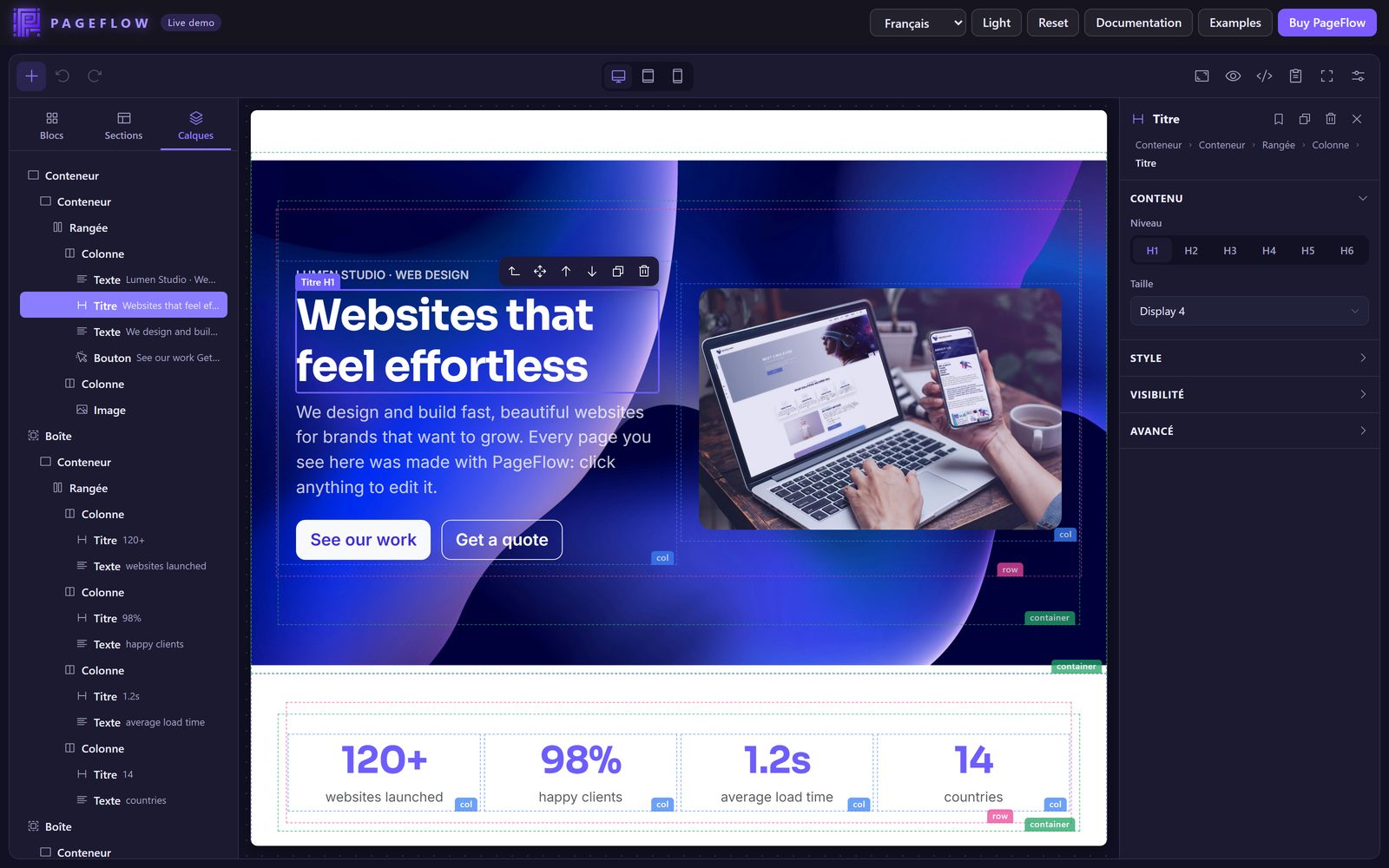
- Top bar: add (+), undo and redo; the preview sizes (desktop, tablet, phone); outlines, preview, code, copy, full screen and settings.
- Left panel: Blocks (drag them, or click to add), Sections (whole ready-made parts of a page) and Layers (the outline of the page).
- Canvas: the page itself, with your site's styles. Containers, rows and columns show a dashed outline and their name (container, row, col); the preview hides them.
- Right panel: the settings of the selected block.
The interface adapts to its width: from 1500 px, both panels show; from 900 px, they share one panel with tabs (selecting a block shows its settings); on smaller screens they open as drawers. A second click on + or on the settings button hides the panel, to give the page all the room.
Adding blocks
Drag a block from the left panel into the page: a violet line shows where it will go. Click a block to add it after the selected one (or inside the selected column). On a touch screen, tap it.
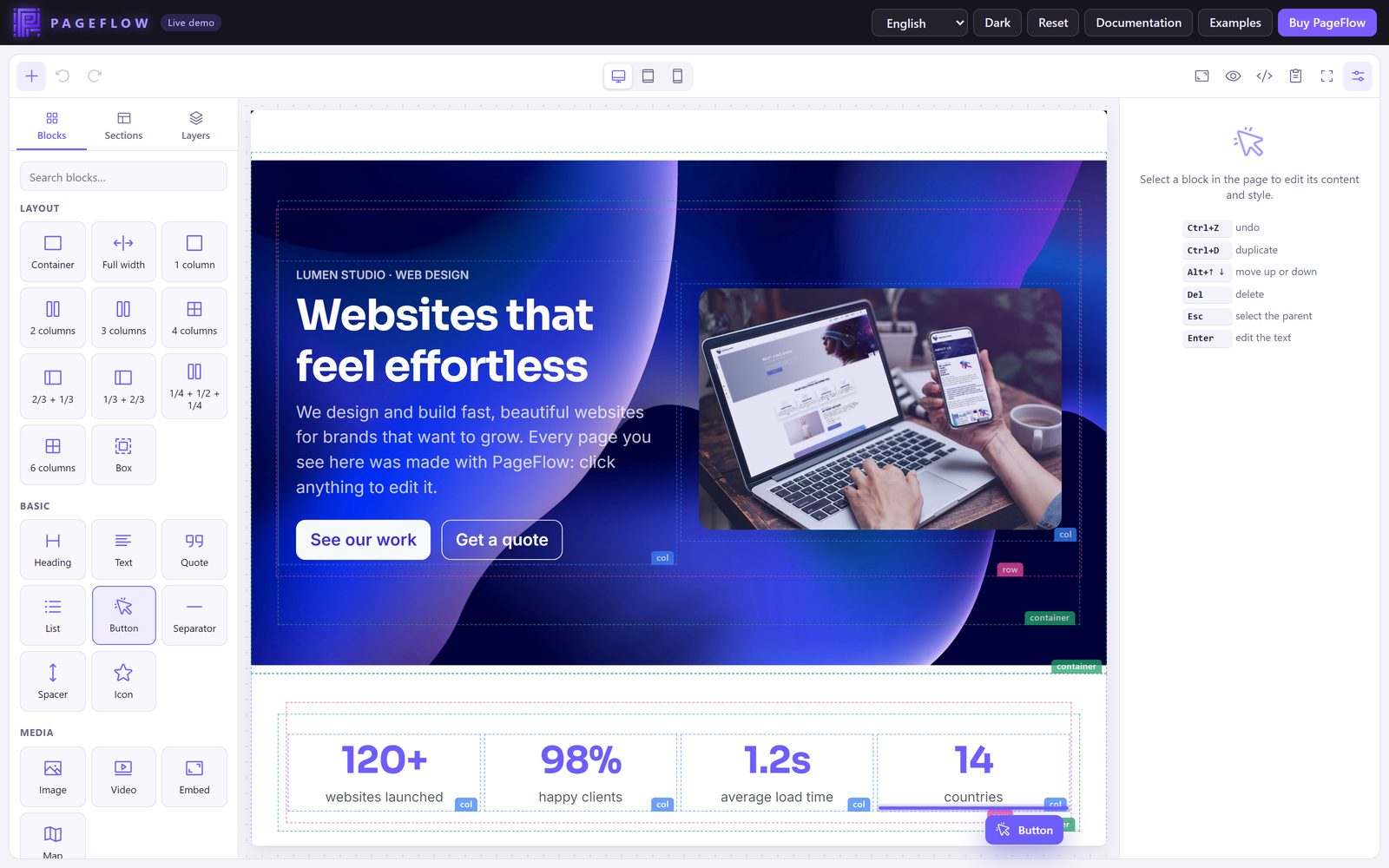
Layout blocks build the structure: a container (centered or full width), rows of columns (1 to 6, or two thirds and one third…), and boxes that group blocks. Columns stack on phones by themselves.
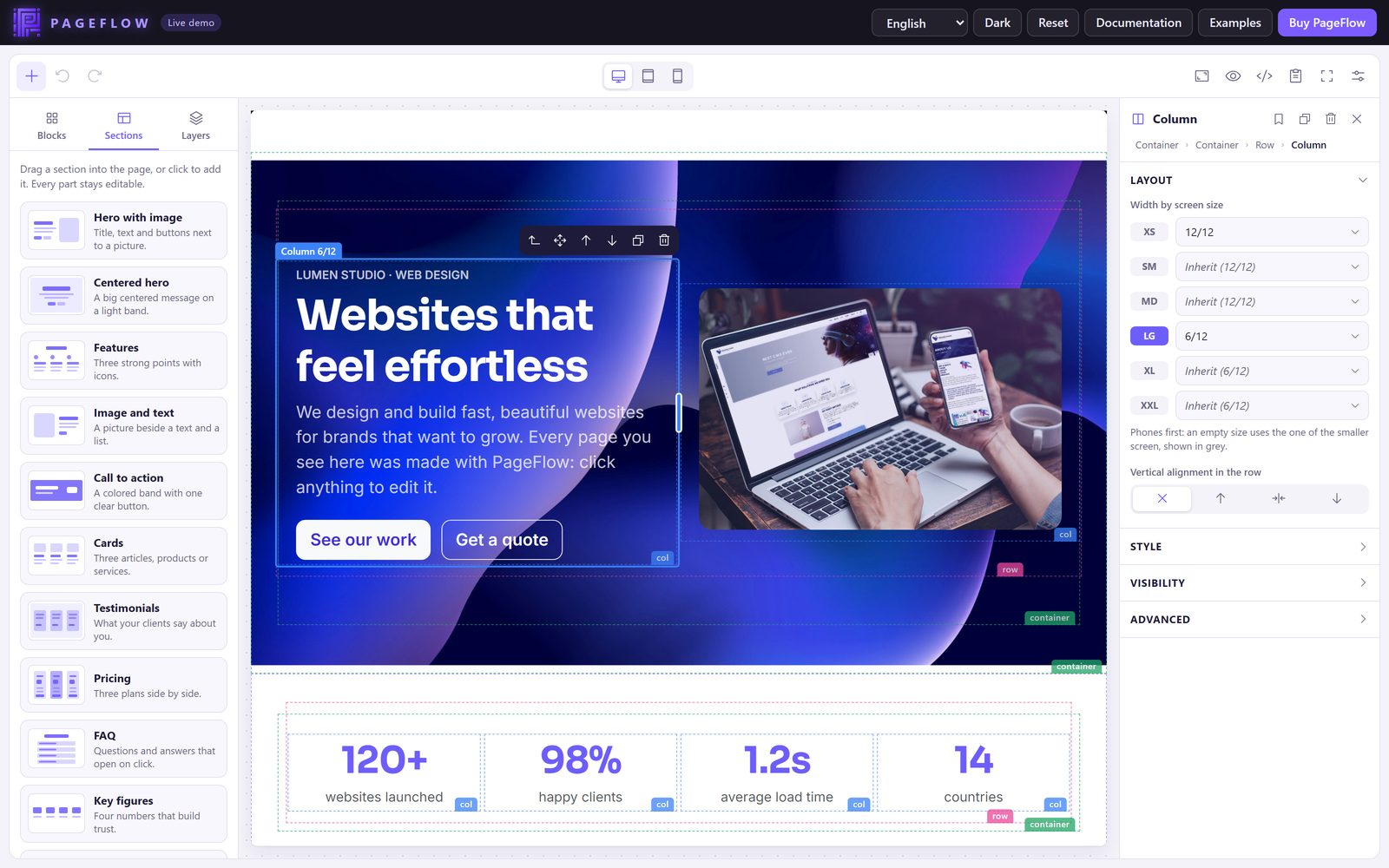
Sections are ready-made parts of a page: two heroes, features, image and text, call to action, cards, testimonials, pricing, FAQ, key figures, team, contact with a map, gallery. Every part of a section stays editable.
Files dragged from the desktop become image blocks where you drop them; a screenshot pasted with Ctrl+V too (when an upload address is set).
Selecting and moving
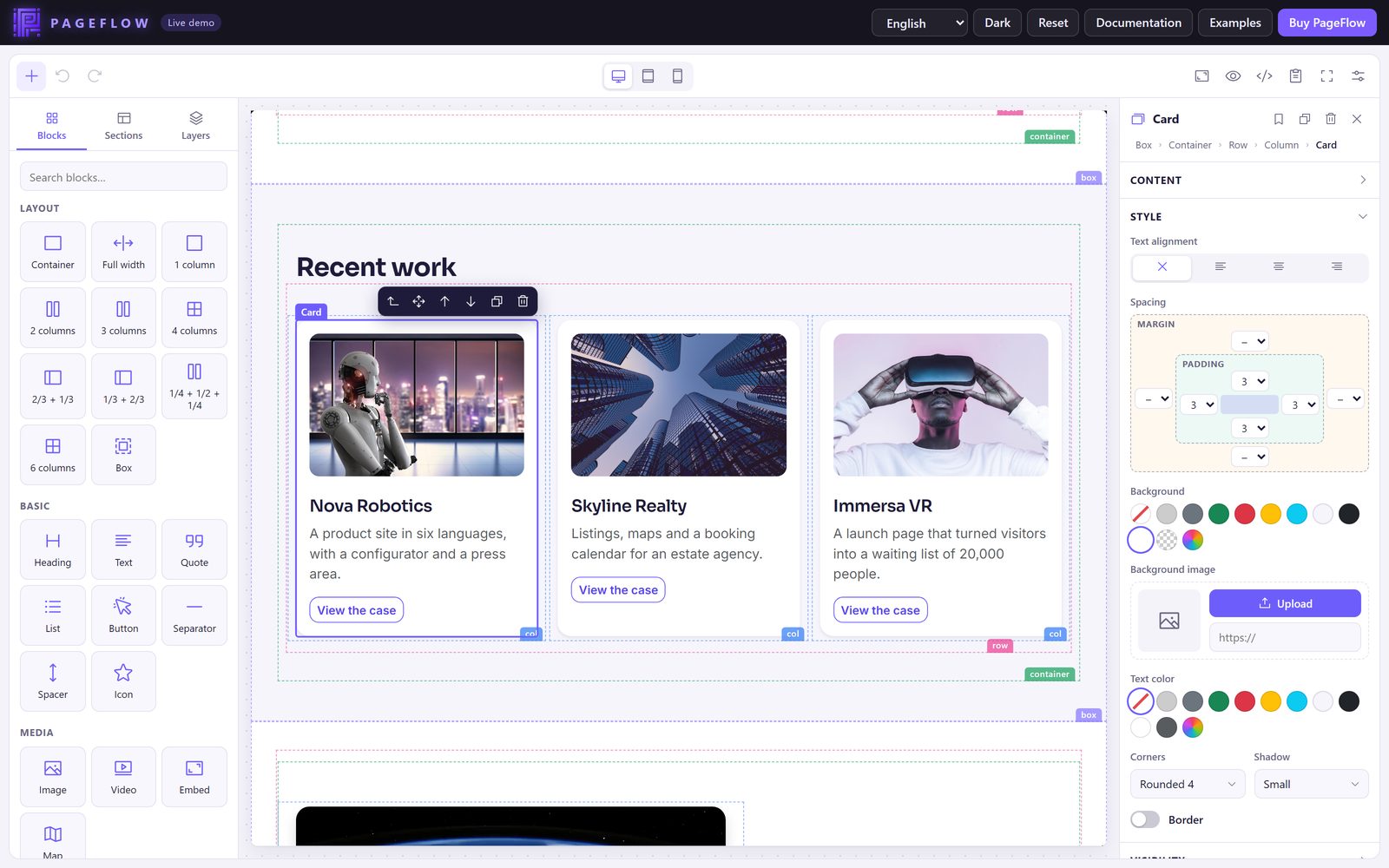
Click a block to select it. Its toolbar selects the parent block, moves it (drag the cross), moves it up or down, duplicates or deletes it. The path at the top of the settings (Container › Row › Column › Heading) selects any parent in one click; Esc selects the parent too.
Blocks can be copied and pasted, also into another page or another browser tab: select a block, Ctrl+C, select where to paste, Ctrl+V.
Editing text
Click a text to write in it. The text toolbar sets the style of the paragraph (paragraph, lead, small text, headings 2 to 5, quote, code), bold, italic, underline, strike, links, lists and alignment. In a table, a menu adds or removes rows and columns.
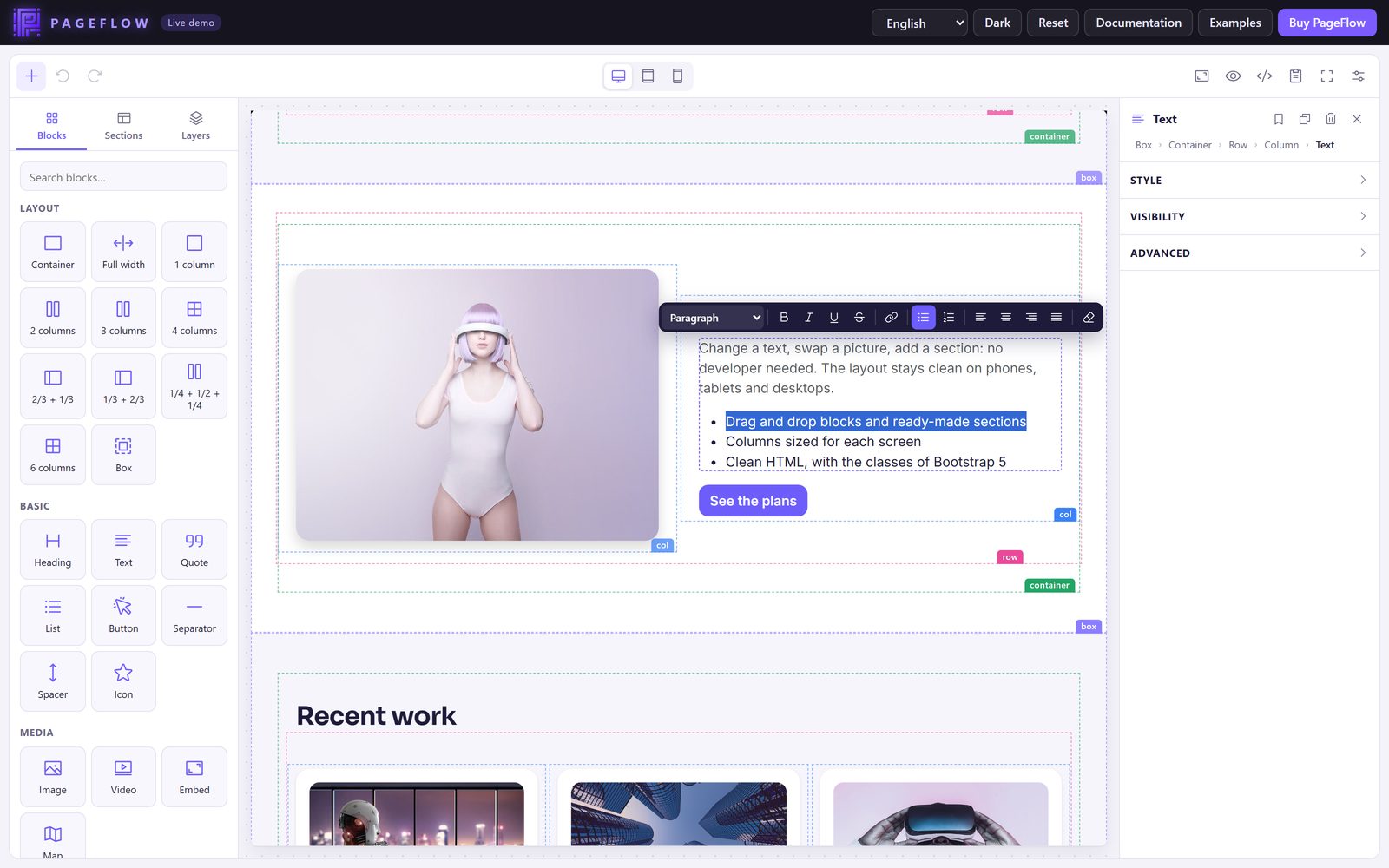
Pasting from Word, Google Docs or a web page keeps the structure (paragraphs, headings, lists, links, tables) and drops the styles, so that the page keeps the look of your site. Links only accept web, e-mail and phone addresses.
Settings of a block
The settings of the selected block are in sections:
- Content: what the block is about (the picture and its alternative text, the address of a button or a video, the level of a heading, the questions of an accordion…).
- Layout: for containers, rows and columns (width, space between columns, alignment).
- Style: text alignment, margins and paddings, background color or picture, text color, corners, shadow and border, all with the classes of Bootstrap.
- Visibility: on which screen sizes the block shows.
- Advanced: an anchor (to link to the block), CSS classes and inline style.
Columns and screen sizes
Drag the handle between two columns to share the twelve units of the row; a tip shows the widths. On the desktop preview, the change applies to every desktop (from Bootstrap's lg), on the tablet preview from md, on the phone preview to every size.
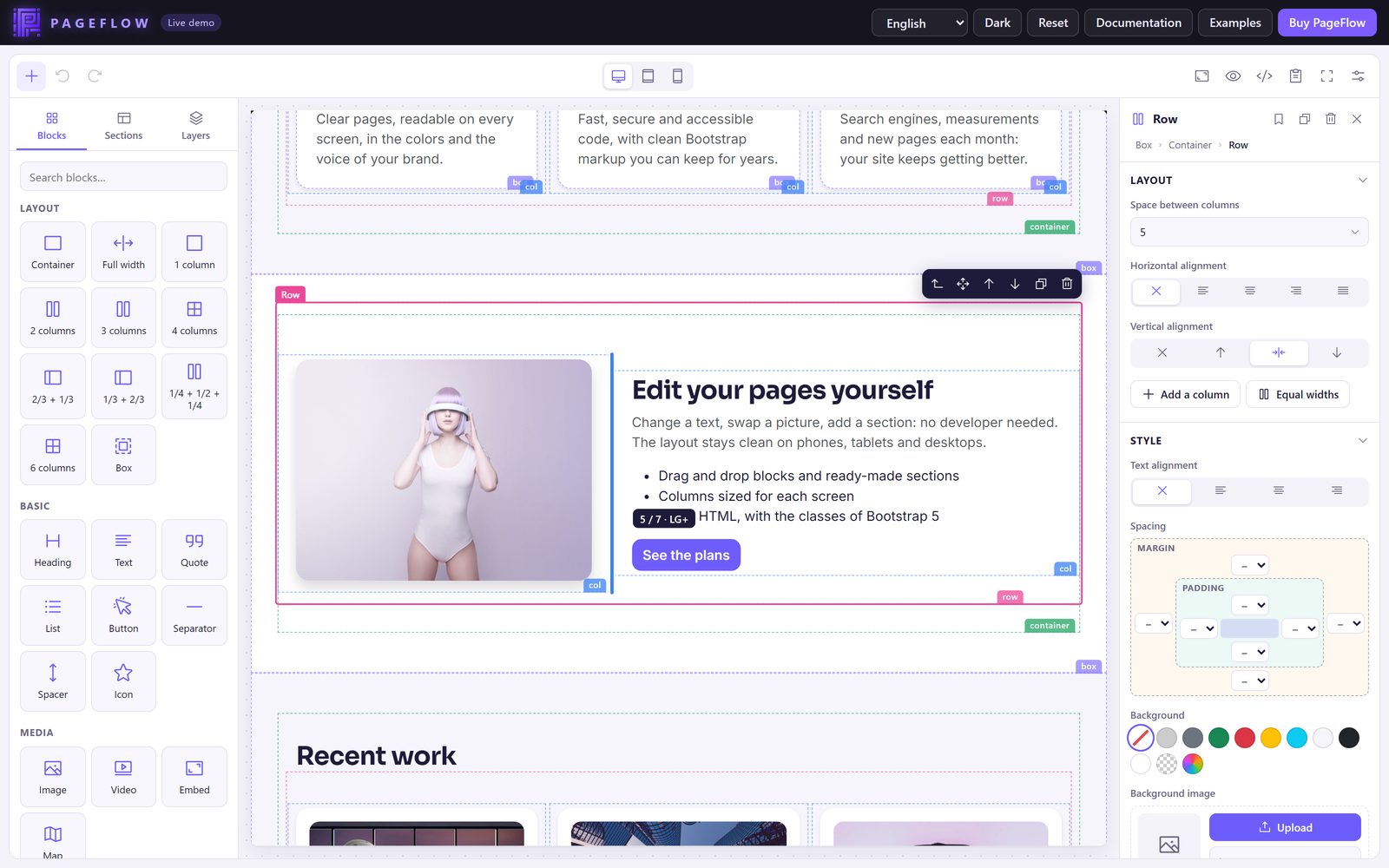
For full control, the Width by screen size setting of a column gives a width for each size of Bootstrap (XS, SM, MD, LG, XL, XXL). Phones come first: an empty size uses the width of the smaller one, shown in grey.
Pictures, videos and maps
- Image: upload or choose a picture, give it an alternative text, a link, a caption, a width, an alignment (with text around it), proportions (cropped to 16:9, 1:1…), corners and a shadow. Double-click a picture to replace it.
- Video: paste a YouTube or Vimeo link (YouTube videos use the privacy-enhanced address), or the address of an MP4 file.
- Map: type an address; choose the zoom and the height. No API key is needed.
- Embed: show another page (a form, a calendar…).
Saved blocks
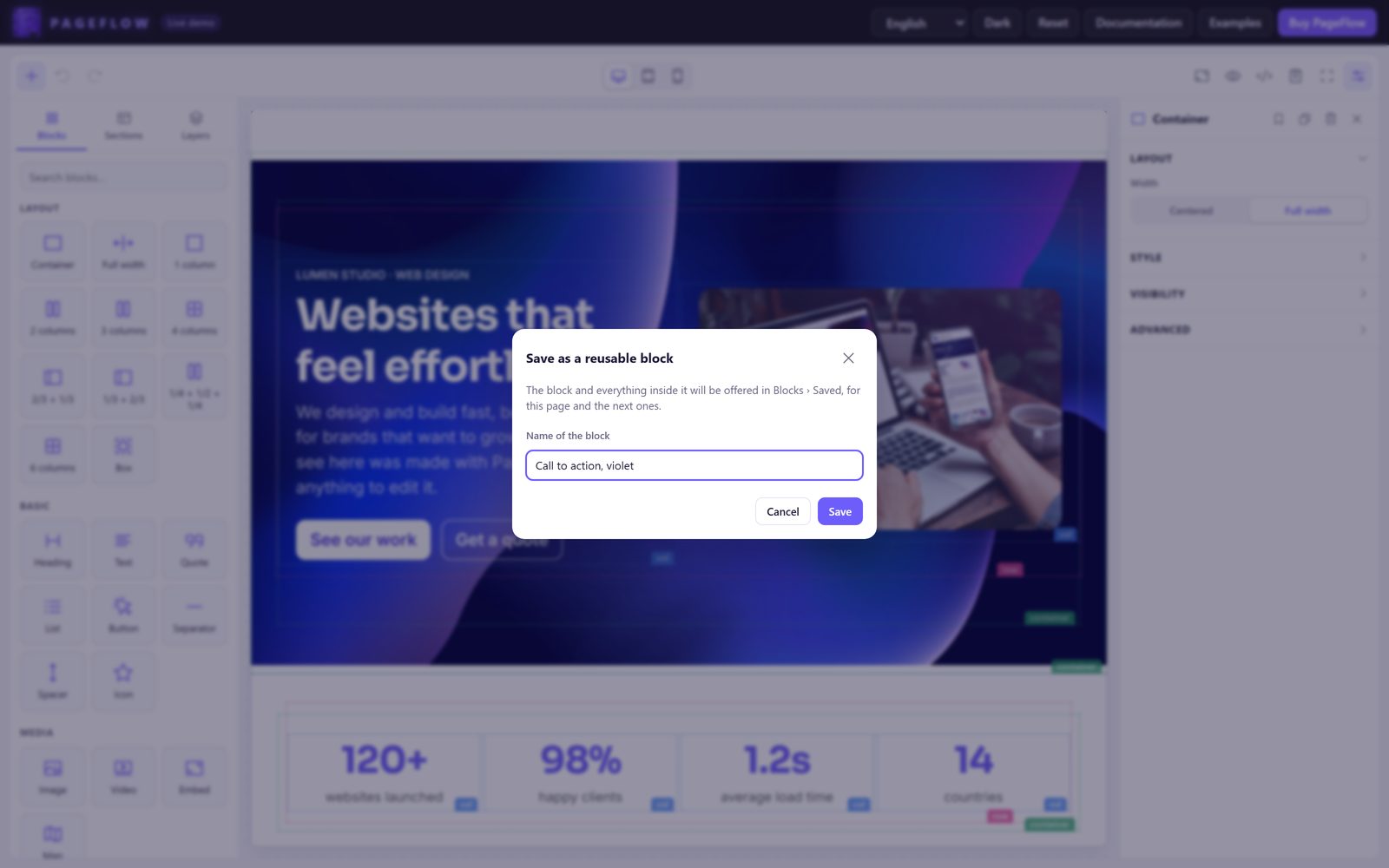
Select a block (a section, a call to action, a card…) and click the bookmark of its settings: give it a name, and find it in Blocks › Saved for this page and the next ones. Saved blocks are kept in the browser; a developer can keep them on the server with the storage option.
Code, preview and drafts
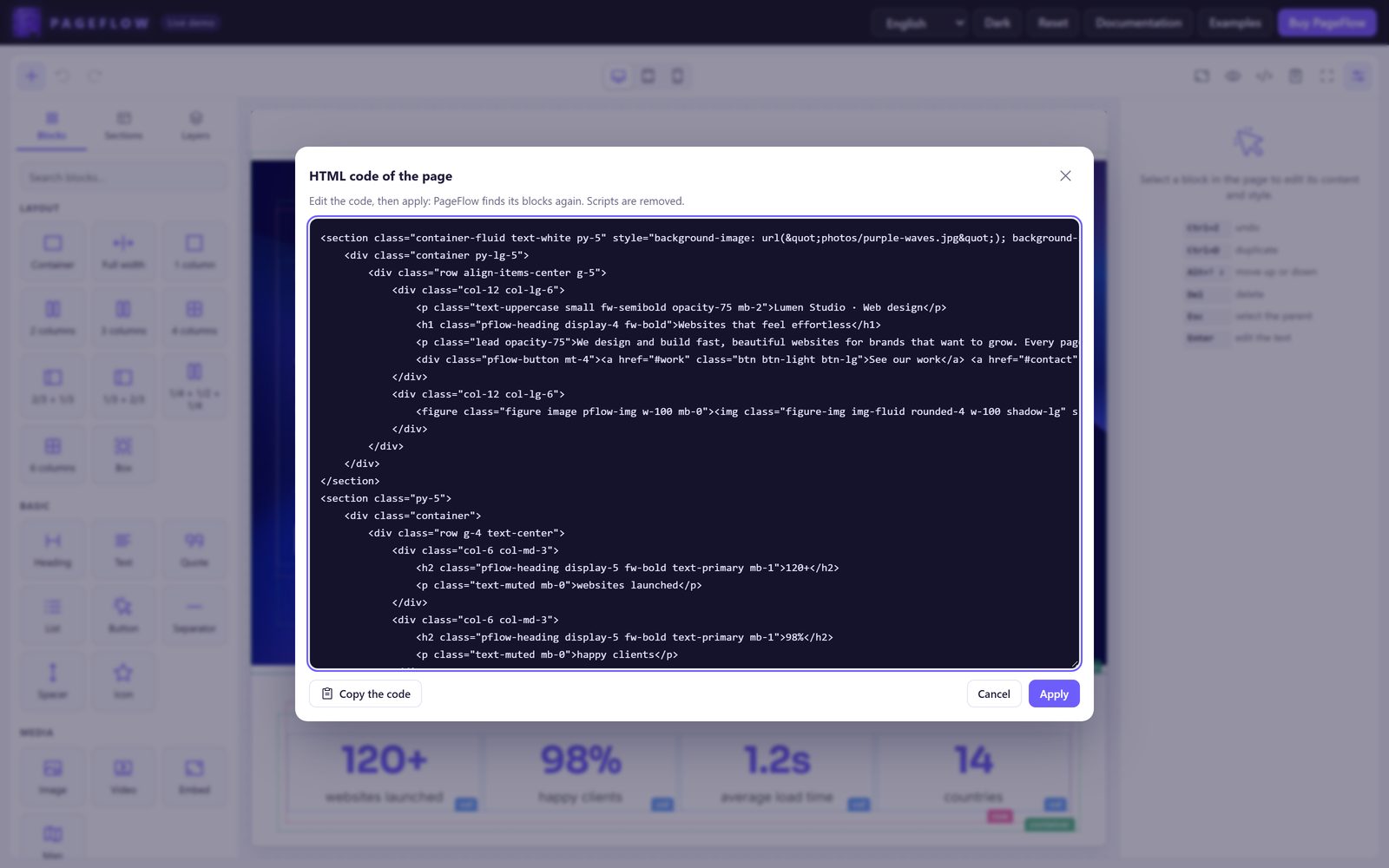
- Code shows the HTML of the page, ready to edit: apply it, and PageFlow finds its blocks again (scripts are removed). Copy puts it in the clipboard.
- Preview hides the panels and the outlines, and makes links work.
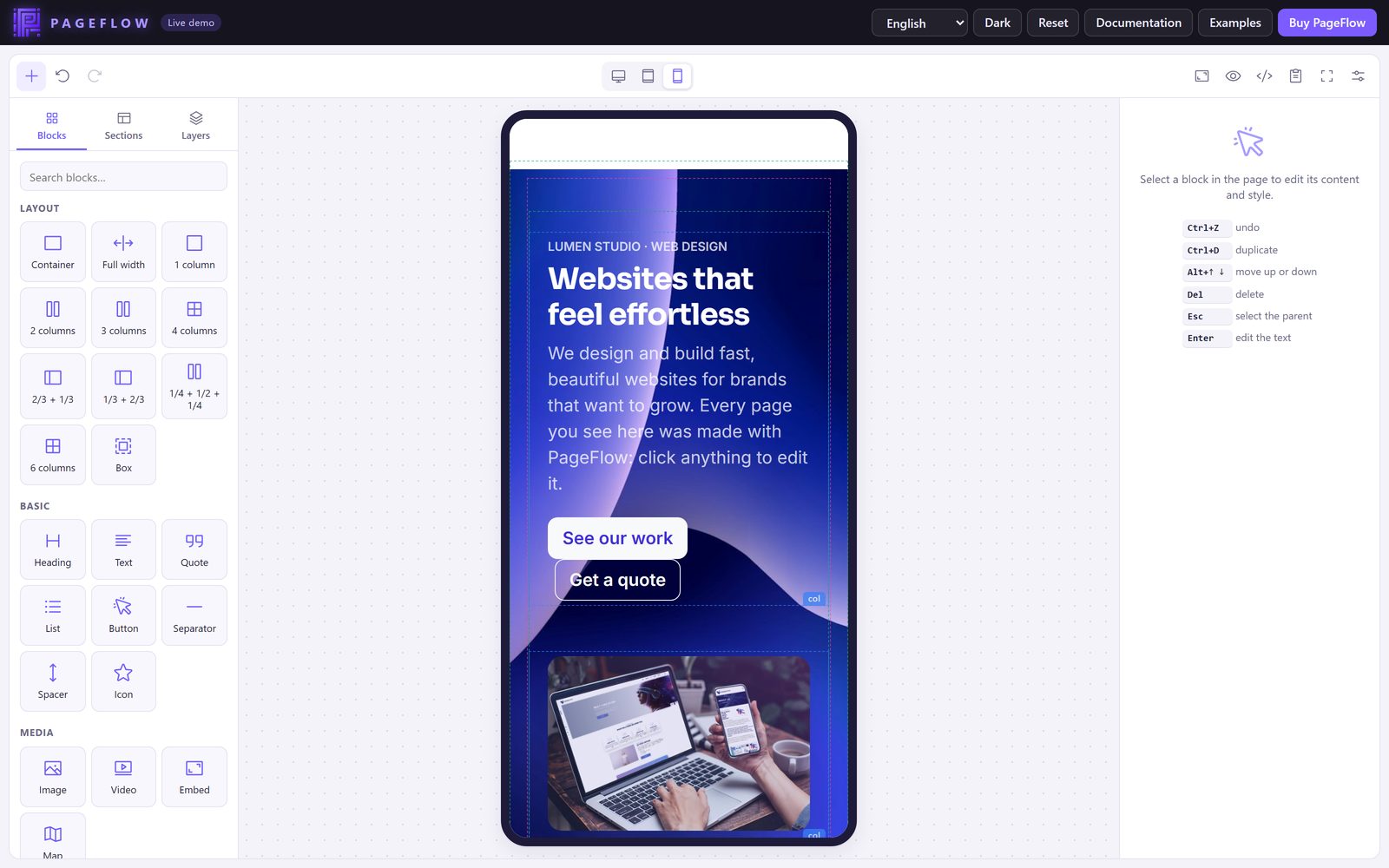
- Desktop, tablet and phone show the page at each size, with the real layout of Bootstrap.
- Drafts (when enabled): changes not saved yet are offered back after a reload.
Keyboard shortcuts
| Keys | Action |
|---|---|
| Ctrl+Z / Ctrl+Y (⌘ on a Mac) | Undo / redo |
| Ctrl+C, Ctrl+X, Ctrl+V | Copy, cut, paste a block (or a text, while typing) |
| Ctrl+D | Duplicate the block |
| Alt+↑ / ↓ | Move the block up / down |
| Del | Delete the block |
| Esc | Stop typing; select the parent block |
| Enter | Edit the text of the selected block |
| Ctrl+B, I, U, K | Bold, italic, underline, link (while typing) |
| Tab / Shift+Tab | Indent / outdent a list item |
Options
PageFlow.create(target, options): target is a selector, an element or a jQuery object. Every option is optional.
Content
| Option | Default | Description |
|---|---|---|
html | null | The page to edit. Without it: the value of input, or the HTML inside the target element. |
input | null | A field (selector or element) read at start, written after each change and when its form is sent. |
onChange | null | editor => {}, after each change (same as the change event). |
onReady | null | editor => {}, once the canvas is loaded (or await editor.ready). |
autosave | false | true or a key: keeps a draft in the browser and offers it back after a reload. |
sanitize | true | A function html => cleanHtml adds your own sanitizer (DOMPurify…). PageFlow's own cleaning always runs. |
historyLimit | 100 | Steps kept for Undo. |
Interface
| Option | Default | Description |
|---|---|---|
locale | 'en' | en, fr, es, de, it, pt, or an object of texts. |
i18n | {} | Texts to replace: { 'tab.sections': 'Templates' }. |
theme | 'light' | light, dark or auto (follows the system). |
mode | 'full' | compact: for a form among other fields (height 760 px by default). |
height | null | Height of the editor: a number of pixels or a CSS length ('80vh'). |
blocks | null | The palette entries to offer, in this order: ['container', 'cols-2', 'heading', 'text', 'image', 'button']. Ids: container, container-fluid, box, cols-1, cols-2, cols-3, cols-4, cols-8-4, cols-4-8, cols-3-6-3, cols-6, heading, text, quote, list, button, separator, spacer, icon, image, video, embed, map, table, card, accordion, html, and your custom blocks. |
sections | true | false hides them; an array replaces them (see PageFlow.sections for the format). |
savedBlocks | true | Offers to save blocks for later. |
storage | browser | { load: () => list, save: list => {} } (may return promises) to keep saved blocks on your server. |
toolbar | all true | { undo, devices, guides, preview, code, copy, fullscreen, layers }: false hides a button. |
actions | [] | Buttons of the top bar: { label, icon, primary, onClick(editor) }. Icons: Object.keys(PageFlow.icons). |
device | auto | desktop, tablet or mobile at start (phone on small screens). |
devices | true | false hides the preview sizes. |
desktopWidth | 1024 | Smallest width of the desktop preview (scaled down to fit). |
autofocus | false | Focuses the canvas at start. |
Canvas
| Option | Default | Description |
|---|---|---|
canvasStyles | Bootstrap 5.3 (jsDelivr) | Stylesheets of the canvas, in order. Relative addresses start from the page. [] loads none. |
canvasCss | '' | CSS added to the canvas. |
canvasScripts | [] | Scripts loaded in the canvas (for another text editor). |
bodyClass, rootClass | '' | Classes of the canvas body and of the content wrapper, if your theme expects some. |
baseUrl | the page's | Base of the relative addresses of the content. |
contentLang, rtl | the page's, false | Language and direction of the content. |
Pictures
| Option | Default | Description |
|---|---|---|
uploadUrl | '' | Upload address (see Pictures and uploads). |
csrfToken, csrfField | '', 'csrf_token' | Token sent with uploads (field and X-CSRF-Token header). |
uploadField, uploadData, uploadHeaders | 'upload', {}, {} | Name of the file field, extra fields and headers. |
upload | null | async (file, { type }) => url or { url, alt }: your own upload. |
mediaLibrary | null | { open: ({ type }) => Promise<{ url, alt } | null> }: your media library. |
maxUploadSize | 10 MB | Largest file accepted, in bytes. |
inlineImages, imageMaxSize | false, 1600 | Without any upload: keep pictures in the page (base64), resized to this size. For pages without a server only. |
videoPrivacy | true | YouTube videos use youtube-nocookie.com. |
Text editor and security
| Option | Default | Description |
|---|---|---|
textEditor | null | Another editor for the texts (see Another text editor). |
nonce | '' | Nonce of your Content Security Policy, for the styles PageFlow adds. |
injectStyles | true | false: load dist/pageflow.css yourself. |
Methods
| Method | Description |
|---|---|
editor.ready | A promise resolved once the canvas is loaded. |
getHTML({ format, markers }) | The HTML of the page. format: false for one line; markers: false removes the pflow-* classes (for a page that will not be edited again). |
setHTML(html, { history }) | Replaces the page (history: false: not undoable). |
getFragment() | The page as a clean DOM fragment. |
insertBlock(name, html) | Inserts a block (or the HTML of a section) near the selection. |
select(element), selectParent(), selected | The selection (an element of the canvas, or null). |
undo(), redo() | History. |
flush() | Ends the text being typed and writes the field now. |
setDevice(name), setPreview(on), breakpoint() | Preview size, preview mode, Bootstrap size of the canvas ('', sm… xxl). |
notify(message, type, duration) | Shows a message (info, success, warning, error). |
clearDraft() | Removes the draft of the browser (after a save). |
on(name, fn), off(name, fn) | Events. |
destroy() | Removes the editor (the field keeps the page). |
canvas | { iframe, doc, win, root }: the canvas, for advanced uses. |
And on PageFlow: create, version, registerBlock, unregisterBlock, getBlock, blocks(), addLocale, sanitize(html), safeUrl(url), sections, placeholder(width, height, hue), icons.
Events
editor.on('change', editor => save(editor.getHTML()));
editor.on('select', element => console.log(element && element.dataset.pf));| Event | Receives |
|---|---|
ready | the editor |
change | the editor, after each step of the history |
select | the selected element, or null |
insert, remove | the block |
device | desktop, tablet or mobile |
upload, upload:error | { file, result }, { file, error } |
destroy | the editor |
Each event is also dispatched on the target element as a DOM event: pageflow:change, pageflow:select…
The styles of your site
The canvas is a frame of your page, with its own styles: list the stylesheets of your site in canvasStyles, and the page looks in the editor as it will online, fonts and colors included. The interface of PageFlow keeps its own look, whatever the styles of the page around it.
The HTML uses the classes of Bootstrap 5: your theme can be any Bootstrap 5 theme, or your own CSS for those classes. The colors offered by the settings (primary, secondary…) are read from the canvas, so they show your theme's.
If the stylesheets cannot be loaded (a wrong address), PageFlow uses a minimal grid so that columns stay columns, and says so.
Custom blocks
A block is a definition: how to recognize it in HTML, how to create it, which parts are editable and which settings it has. Register it before creating the editor; it shows in the palette and is recognized in existing pages.
PageFlow.registerBlock({
    name: 'alert',
    label: 'Alert',                 // text, or a key of your translations
    icon: 'warning',                // one of Object.keys(PageFlow.icons)
    category: 'components',         // layout, basic, media, components, advanced
    priority: 70,                   // tried before the generic blocks at import
    match: el => el.classList.contains('alert'),
    create: ctx => ctx.h('div', { class: 'alert alert-info', role: 'alert' }, 'Your message'),
    prepare: el => el.setAttribute('data-pf-edit', 'inline'),   // editable on one line
    fields: [{
        type: 'select', label: 'Style',
        options: [{ value: 'alert-info', label: 'Info' }, { value: 'alert-warning', label: 'Warning' }],
        get: el => [...el.classList].find(c => /^alert-/.test(c)) || '',
        set: (el, value) => { el.classList.remove('alert-info', 'alert-warning'); el.classList.add(value); },
        pattern: /^alert-(info|warning)$/,   // classes not listed in "CSS classes"
    }],
});| Property | Description |
|---|---|
name | Unique id (also its id for the blocks option). |
kind | leaf (default), flow (holds other blocks, like a box), row or col. |
match(el) | Recognizes the block in imported HTML. The block with the highest priority wins. |
create(ctx) | Returns a new element. ctx.h(tag, attributes, ...children) builds elements of the canvas; ctx.t(key) translates. |
prepare(el) | Marks the editable regions: data-pf-edit="rich" (paragraphs, lists…), "inline" (one line with bold, italic, links) or "plain" (text only). |
normalize(el), exportNode(el) | Optional: rewrites an imported element, and cleans the exported copy. |
fields | Settings of the Content panel (see Field types), or a function (el) => fields. |
accepts(name) | For flow blocks: which blocks may go inside. |
presets | Extra palette entries made from HTML: [{ id, label, icon, html }]. |
palette | false keeps it out of the palette (still recognized). |
See examples/custom-block.html.
Field types
A field has a type, a label, get(el) and set(el, value); optionally help, target(el) (the element it changes), when(el) (shown only when true) and pattern (the classes it manages).
| Type | Control | Extra properties |
|---|---|---|
text, textarea, url | Text field (URLs are checked) | placeholder, lazy (applied when leaving the field) |
select | Drop-down list | options: [{ value, label }] |
segmented | Buttons side by side | options: [{ value, label, icon }], icons: true |
toggle | Switch | |
range | Slider and number | min, max, step, unit |
color | Color picker | |
media | Picture or video, with upload | mediaType: 'image' | 'video' |
link | Address and "new tab" | value: { url, newTab } |
icon | Icon picker |
Another text editor
PageFlow's own editor covers what pages need. To use another one (CKEditor, TinyMCE, Quill…) for the rich texts, give a function that starts it on an element of the canvas and returns how to read and stop it. Load the editor in the canvas with canvasScripts: the texts live in the canvas document.
PageFlow.create('#editor', {
    canvasScripts: ['/vendor/my-editor/my-editor.js'],
    textEditor: (element, { window, document, mode }) => {
        const instance = window.MyEditor.attach(element);   // the library of the canvas
        return {
            getHTML: () => instance.getContent(),             // read when editing ends
            destroy: () => instance.detach(),
        };
    },
});
The HTML returned is cleaned like everything else. Mind the licence of the editor you plug (CKEditor and TinyMCE are GPL or commercial).
Translations
Choose a language with locale (en, fr, es, de, it, pt). Change any text with i18n, or add a language:
PageFlow.addLocale('nl', { 'tab.blocks': 'Blokken', 'action.undo': 'Ongedaan maken' });
PageFlow.create('#editor', { locale: 'nl' });   // missing texts stay in English
The keys are in src/i18n/en.js. The texts of the ready-made sections are translated too.
jQuery
jQuery is not needed. When it is on the page (before PageFlow), the syntax of version 1 works:
$('.pageflow').pageflow({ exportToInput: true });   // rel="#field" names the field
$('.pageflow').pageflow('getHTML');                  // any method, by name
const editor = $('.pageflow').pageflow('instance');
The events pandao:sync.pageflow (writes the field) and pandao:restore.pageflow (reloads it) of version 1 still work.
React, Vue and others
Create the editor once its element is in the page, and destroy it when the component goes away:
// React
useEffect(() => {
    const editor = PageFlow.create(ref.current, { html: props.html, onChange: e => props.onChange(e.getHTML()) });
    return () => editor.destroy();
}, []);

// Vue
onMounted(() => { editor = PageFlow.create(el.value, { html: props.html }); });
onBeforeUnmount(() => editor.destroy());
The HTML it writes
PageFlow writes indented HTML with the classes of Bootstrap 5, for example:
<div class="container py-5">
    <div class="row g-4 align-items-center">
        <div class="col-12 col-md-6">
            <h2 class="pflow-heading">Edit your pages yourself</h2>
            <p class="text-muted">Change a text, swap a picture…</p>
        </div>
        <div class="col-12 col-md-6">
            <figure class="figure image pflow-img"><img class="figure-img img-fluid rounded" src="/media/visor.webp" alt="…"></figure>
        </div>
    </div>
</div>- A few
pflow-*classes (pflow-heading,pflow-img,pflow-button,pflow-card…) let PageFlow recognize its blocks when the page is edited again. They have no style;getHTML({ markers: false })removes them. - HTML that PageFlow does not know stays as it is, in an HTML block.
- Nothing of the editor is ever exported: no
data-*attribute of PageFlow, no editing state. - Accordions use
<details>: they work without any script.
Security
- Everything that enters the canvas (the initial page, the code view, pasted content, HTML blocks, drafts, saved blocks) is cleaned: no
<script>, no event attribute (onclick…), nojavascript:address, no<object>orsrcdoc. - Links, pictures and videos only accept web, e-mail and phone addresses;
target="_blank"links getrel="noopener". - The PHP upload handler accepts pictures only, writes them again (nothing hidden in a file survives), behind a CSRF token, a same-origin check and a rate limit.
- PageFlow works under a strict Content Security Policy: give your
nonce(used for the styles it adds, in the page and in the canvas), orinjectStyles: falseanddist/pageflow.css. The canvas is anabout:srcdocframe that inherits your policy: the stylesheets ofcanvasStylesmust be allowed by itsstyle-src.
The cleaning protects the editor and its users. If people you do not trust can send pages to your server, clean the HTML there too (for example with HTML Purifier in PHP): a request can always be forged without the editor.
FAQ
Do I need Bootstrap on my site?
The CSS of Bootstrap 5, yes: the pages use its classes. Its JavaScript is not needed.
Can I use my own CSS framework?
The blocks write Bootstrap classes, which any CSS can style. For other markup, write custom blocks.
Why can't I upload pictures?
No upload address is set: see Pictures and uploads. The image fields still take the address of a picture.
The page looks different in the editor and online.
Give canvasStyles the same stylesheets as your site, and bodyClass / rootClass if your theme styles the content through a wrapper.
Columns are stacked in the editor.
The stylesheets of the canvas did not load (PageFlow says so): check the addresses in canvasStyles.
Can I limit what people can do?
Yes: blocks chooses the palette, sections: false hides the sections, toolbar hides buttons.
Does it work on a phone or a tablet?
Yes: the panels become drawers, a tap adds a block, and blocks move with their handle or the up and down arrows.
Can several editors be on one page?
Yes, each with its own options.
Support
We answer through the Support tab of the page of PageFlow on CodeCanyon. Item support comes with your purchase for 6 months, and can be extended to 12 months. It covers questions about the features of the product, the fixing of bugs, and help with the third-party assets it includes, as described by the item support policy of Envato. Installation services and customisation are not included.
To get a quick answer, describe what you did, what you expected and what happened, give the address of the page, the browser, and any message of the browser's console (F12). Never send a password in a message.
Author: items.pandao.eu · Live demo: pageflow.pandao.eu
Credits & licences
PageFlow is made by Pandao and sold under the licences of Envato Market (Regular or Extended). It includes the following resources, each under its own licence.
| Resource | Licence |
|---|---|
| Phosphor Icons (icons of the interface and of the Icon block) | MIT |
| Bootstrap 5 (CSS loaded in the canvas from jsDelivr by default; not bundled) | MIT |
| Placeholder pictures of the sections | drawn by PageFlow (SVG), no licence needed |
The photos of the online demo and of the screenshots of this guide are for preview only and are not included.
Changelog
Version 2.0.0 October 2026
A complete rewrite, without dependency.
- Plain JavaScript: no jQuery, Bootstrap JavaScript or CKEditor needed; the jQuery syntax of 1.x still works.
- Canvas with the styles of your site, and desktop, tablet and phone previews with the real layout.
- New blocks: box, quote, list, table, spacer, icon, map, embed, accordion, HTML; 13 ready-made sections.
- Inspector: spacing, colors, background pictures, corners, shadows, borders, visibility per screen size, column widths per screen size, anchors and classes.
- Columns resized with the mouse; one drop marker computed from the pointer.
- PageFlow's own text editor (paragraph styles, lists, links, alignment, tables, clean paste).
- Undo and redo, copy and paste between pages, saved blocks, layers, drafts, code view, keyboard shortcuts.
- Pictures: upload field, drop from the desktop, paste; secure PHP upload handler; no more base64 by default.
- Six languages; light and dark themes; layouts for wide, medium and small screens.
- Security: cleaning of everything that enters the page; removing a block no longer deletes its file on the server; the upload handlers of 1.x must be removed.
- Pages written by 1.x are imported unchanged.
Version 1.0.0 October 2024
First version: a jQuery page builder with CKEditor 5.